
Guides & Tutorials
Everything you need to get the most out of SADNAD — from your first upload to advanced rebuild techniques.
Uploading Your First Beat
Learn how to upload MP3, WAV, or AI-generated tracks and get the most accurate analysis.
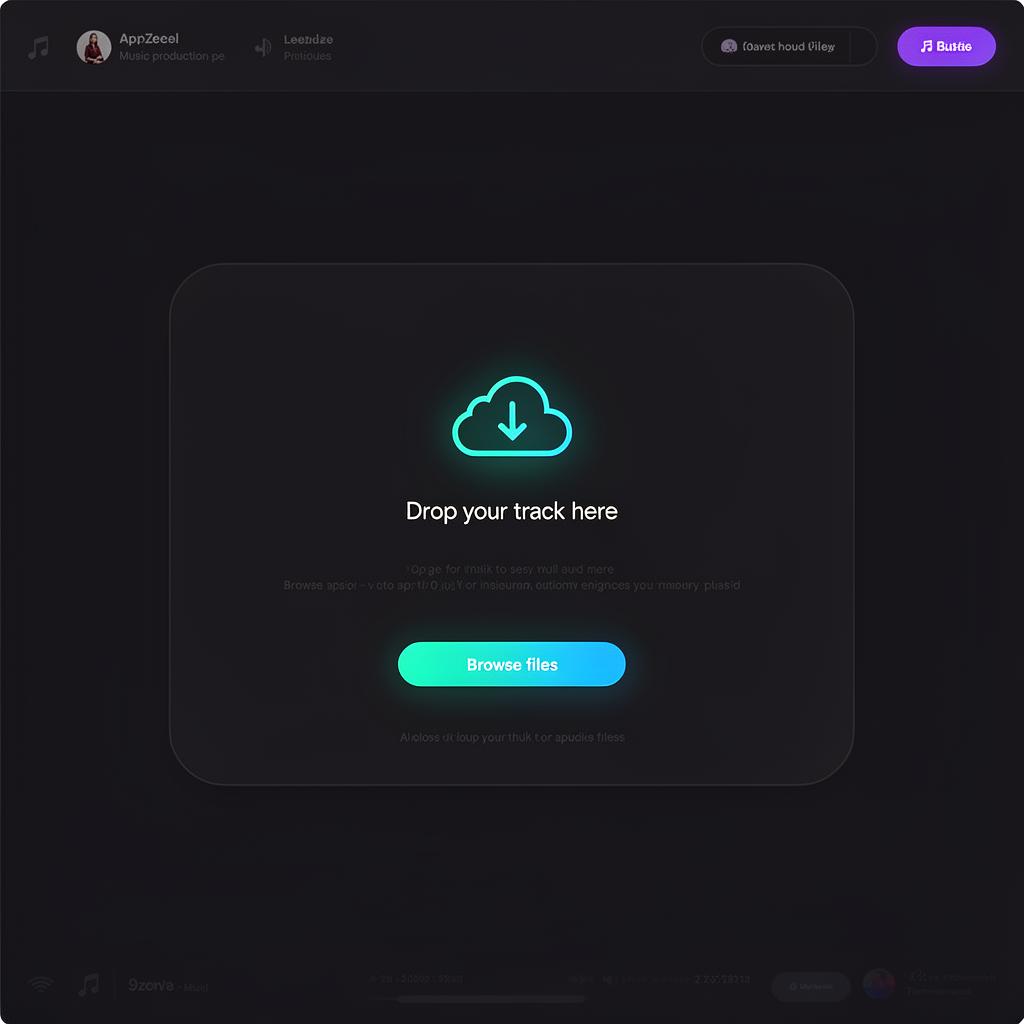
- 1Go to the New Analysis page from your dashboard.
- 2Drop an audio file or click to browse (MP3, WAV, FLAC up to 50 MB).
- 3Wait for the upload to complete — our scanner will start automatically.
- 4Review the generated blueprint on the project page.
Reading the Blueprint
Understand every section of a SADNAD blueprint so you can rebuild the track confidently.
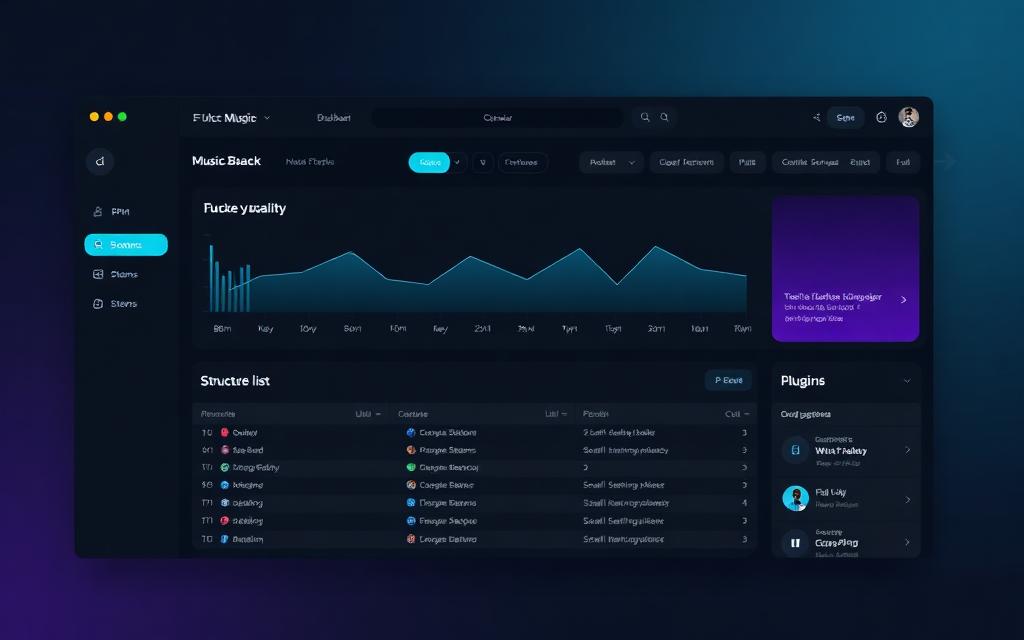
- 1BPM & Key: Found at the top — lock these into your DAW first.
- 2Structure: See the arrangement timeline (intro, drop, bridge, outro).
- 3Stems: Each stem shows the instrument, plugin guess, and confidence score.
- 4Plugin suggestions: Start with the highest-confidence picks and A/B alternatives.
Sound Identification Tips
Get better plugin and preset matches by following a few best practices.
- 1Use high-quality audio — compressed MP3s can hide subtle timbre details.
- 2Clean stems yield clearer results. Try soloing elements when possible.
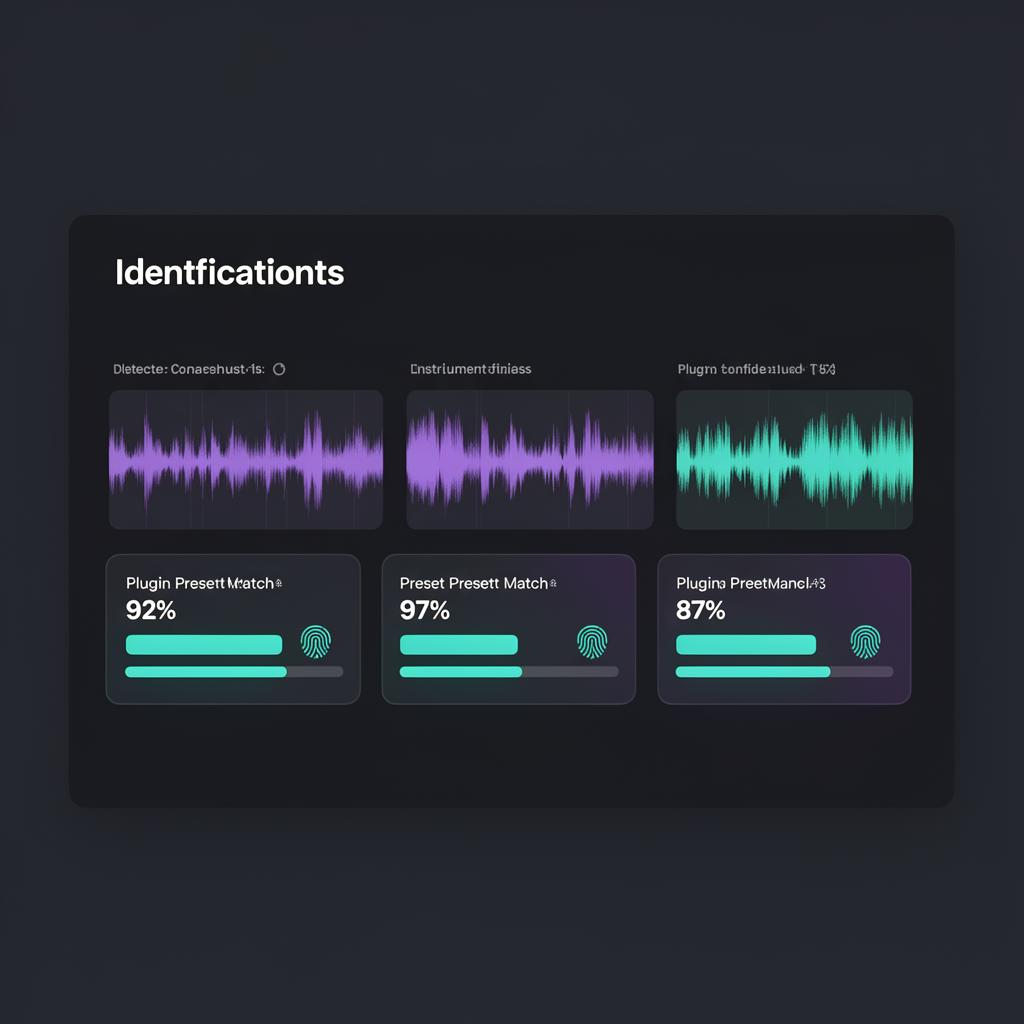
- 3Check the confidence bar; anything above 85% is usually spot-on.
- 4Cross-reference similar plugins if your exact one is not listed.
Rebuilding in Your DAW
Turn a blueprint into a finished remake with this workflow.
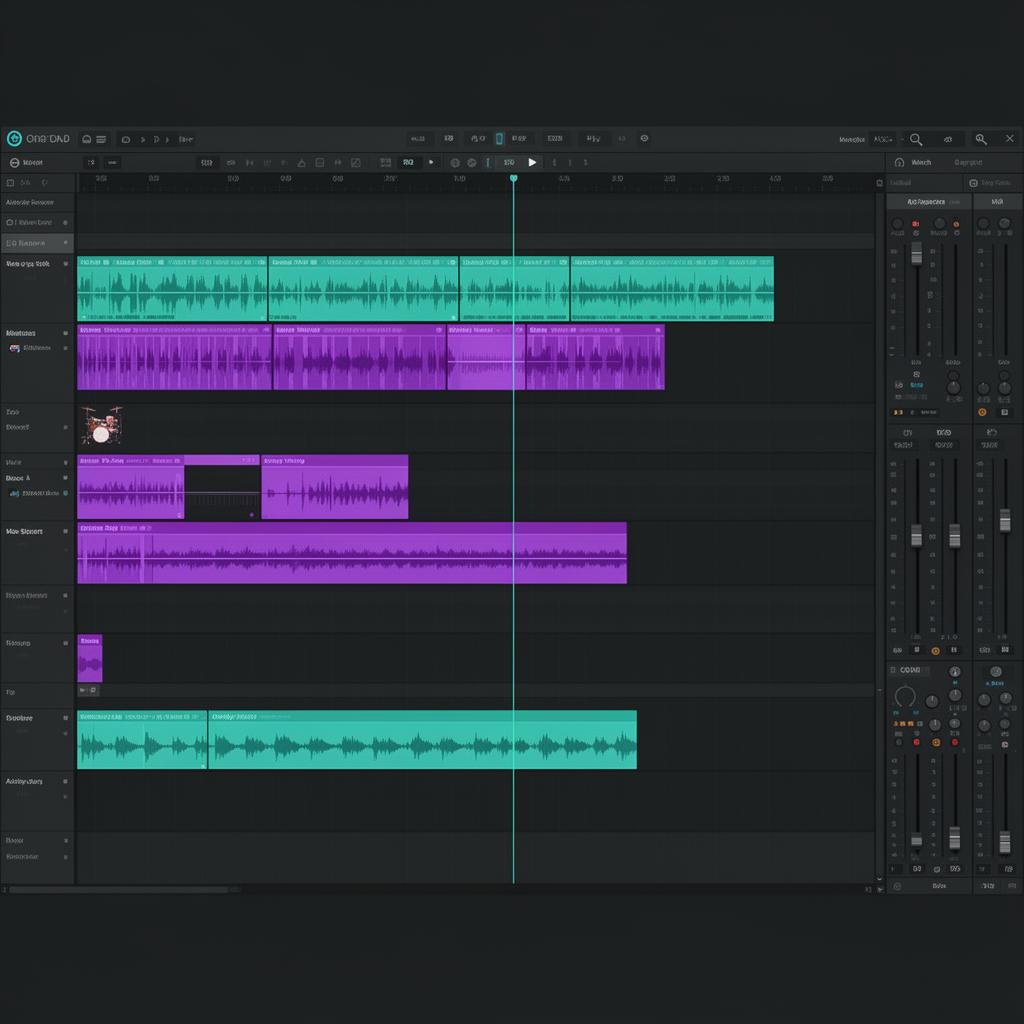
- 1Set the project BPM and key from the blueprint header.
- 2Lay out the structure markers (intro, build, drop, etc.).
- 3Add instruments one by one, starting with drums, then bass, then melodic layers.
- 4Match plugins and presets, then tweak until the sound sits right.
Using the Community Feed
Browse public blueprints shared by other producers and learn from real examples.
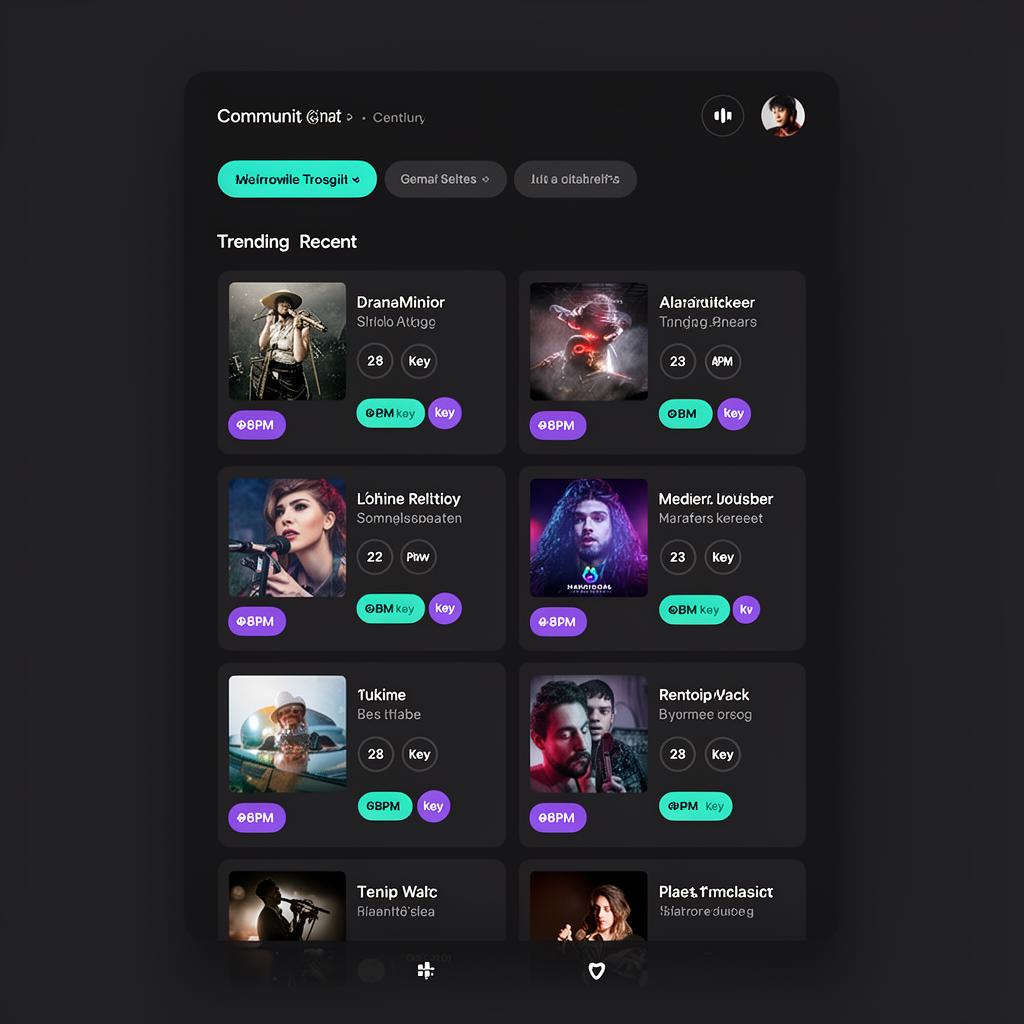
- 1Visit the Community tab to see trending and recent analyses.
- 2Filter by genre, BPM range, or key to find inspiration.
- 3Open any public blueprint to inspect the full breakdown.
- 4Bookmark favorites to reference later in your own sessions.
Managing Your Credits
Track usage, upgrade your plan, and get the most out of every analysis.
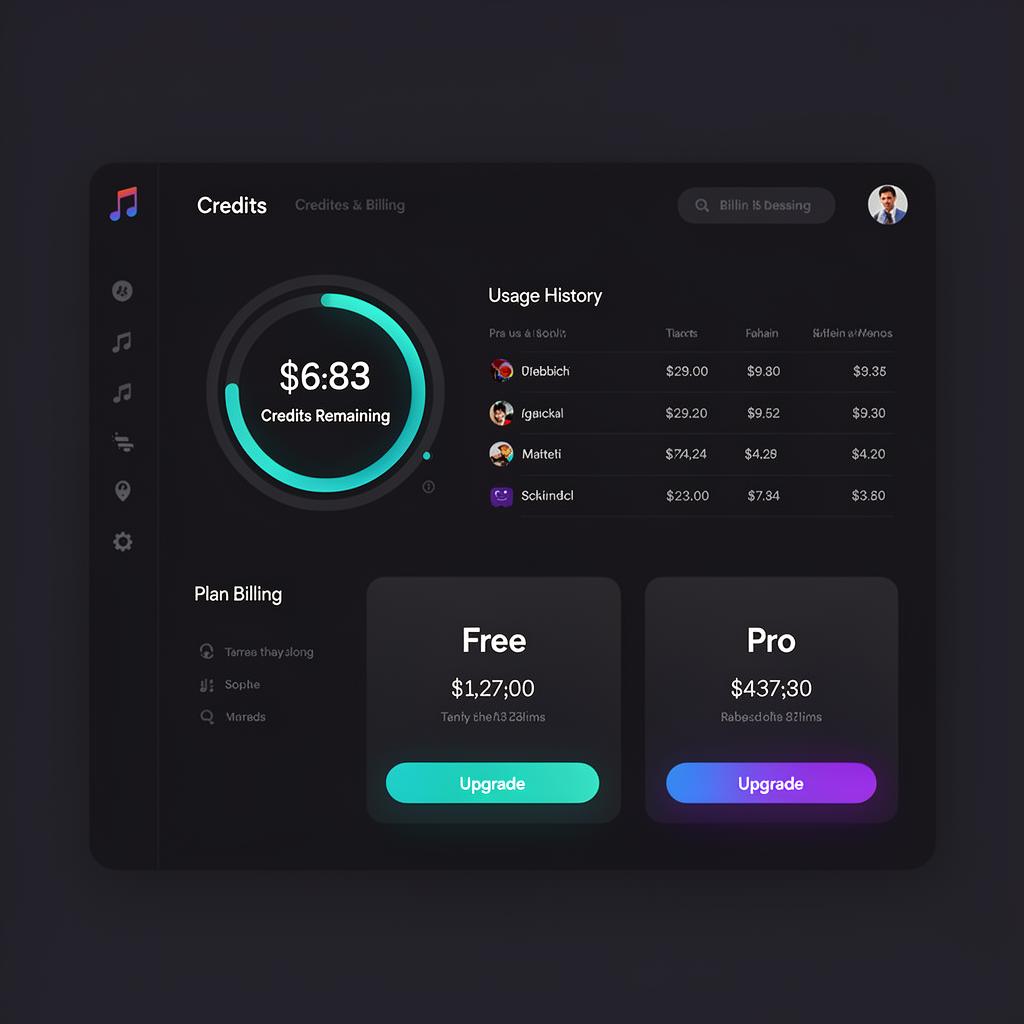
- 1Check your remaining credits on the Dashboard or Upgrade page.
- 2Free-tier users get a limited number of analyses per month.
- 3Upgrade anytime for unlimited analyses and priority processing.
- 4Regenerate a blueprint without using an extra credit if results look off.
Quick Tips
Audio Quality Matters
Upload lossless WAV or high-bitrate MP3 for the most accurate stem separation and plugin detection.
Reference, Don't Copy
Blueprints are educational tools. Use them to study techniques, not to distribute cloned works.
Regenerate When Stuck
If a blueprint feels incomplete, hit Regenerate. The engine re-analyzes with a fresh perspective.
Ready to analyze your first track?
Create a free account and get your first blueprint in minutes.
Get Started Free